
Security Assistant is a custom Home Assistant integration that provides real-time network security monitoring for your home. It combines passive NetFlow/IPFIX traffic analysis with active network scanning, external IP threat intelligence, DNS blacklist checks, and vulnerability detection — all presented through a dedicated multi-view sidebar dashboard.
Website: https://domotic.monster/homesec.html
- Listens for NetFlow v5, v9, and IPFIX datagrams on a configurable UDP port
- Classifies internal vs. external traffic using configurable CIDR ranges
- Tracks per-device flow counts, byte volumes, and connection history
- Detects suspicious patterns: outbound traffic to abused ports, port scanning, unusual egress volume
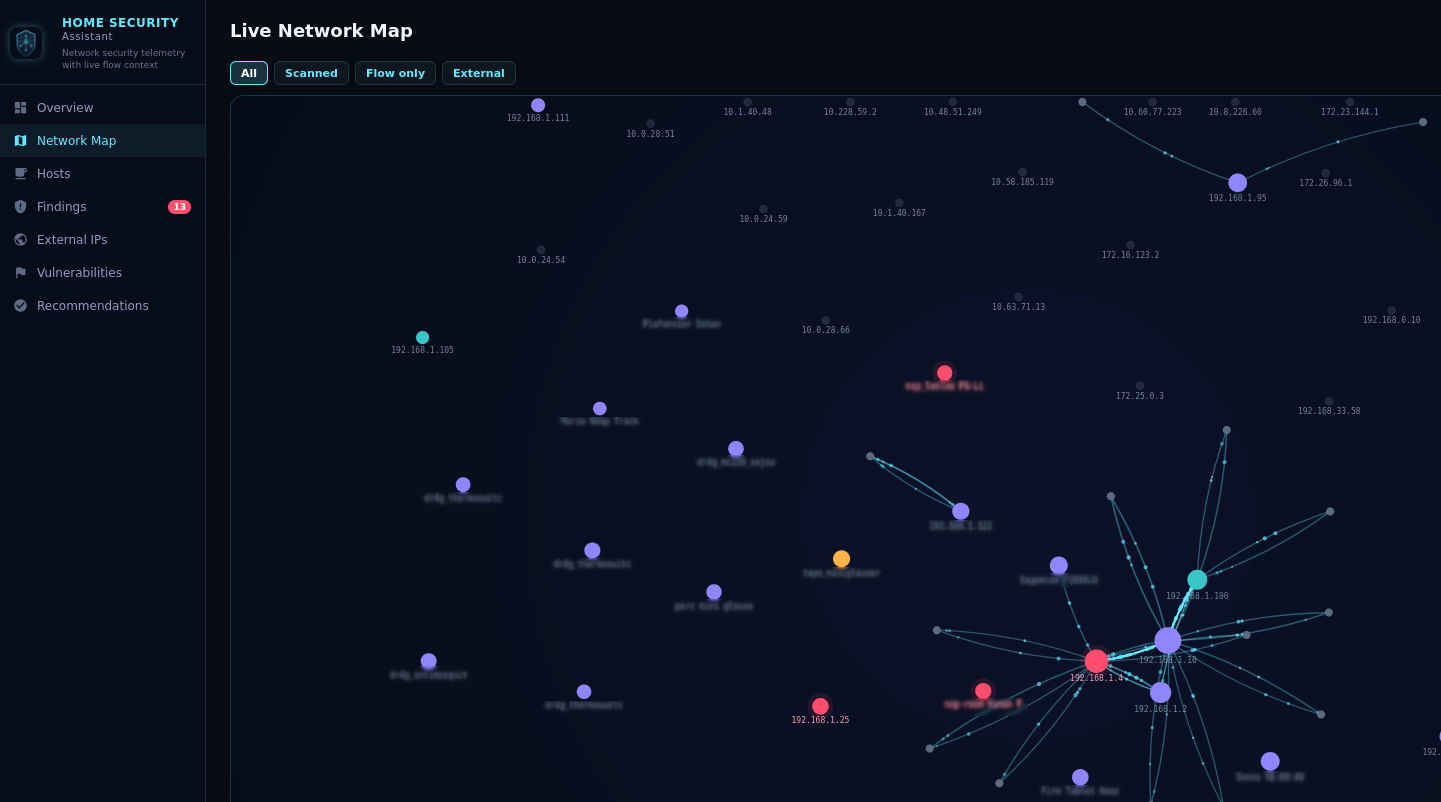
Example: Network Flow Analysis Map
- Optional ping + port scan of all observed internal hosts (nmap-style, configurable interval)
- Configurable scan ports — specify individual ports, ranges, or both (e.g.
22,80,443,8000-9000). Defaults to 47 well-known ports: 21-23, 25, 53, 80, 110, 111, 135, 139, 143, 443, 445, 465, 515, 554, 587, 631, 993, 995, 1080, 1433, 1521, 1723, 1883, 2049, 2323, 3306, 3389, 4443, 5000, 5060, 5432, 5555, 5900, 6379, 6667, 8000, 8008, 8080, 8443, 8883, 8888, 9090, 9100, 9200, 27017, 49152 - Discovers open services and OS fingerprints even when hosts block ping
- HTTP fingerprinting — lightweight WhatWeb-style technology detection on HTTP(S) ports. Identifies CMS platforms (WordPress, WooCommerce, Joomla, Drupal, Magento), web servers (Tomcat, IIS, Caddy, Varnish, HAProxy), applications (Grafana, GitLab, Nextcloud, Jenkins, phpMyAdmin, Pi-hole, Synology DSM, UniFi, Elasticsearch, Prometheus), and runtimes (PHP, Node.js, ASP.NET) from response headers, cookies, and HTML content
- Reports scan results per host: alive status, ping latency, open ports, OS guess, detected technologies
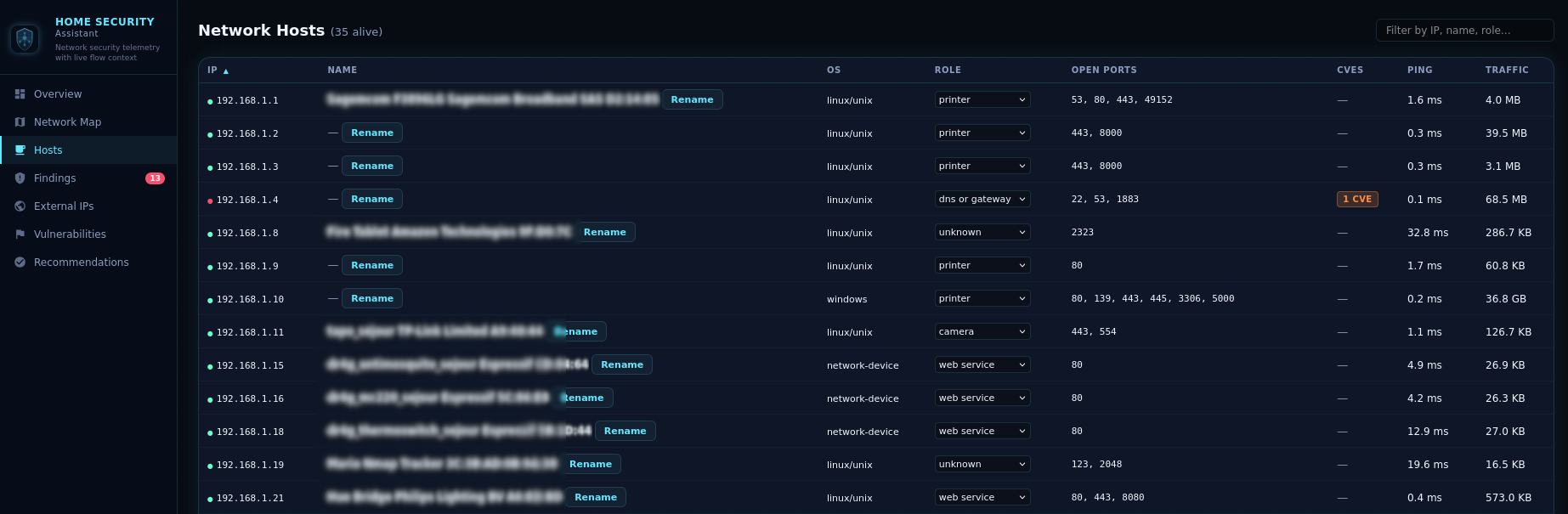
Example: Active Network Scanner Hosts View
- Enriches external IPs with ipwho.is (free, no auth), VirusTotal, and AbuseIPDB (all optional, API keys configurable)
- Background-only enrichment — all provider calls run in a background worker queue; on-demand lookups (IP detail panel) return cached results instantly, never blocking the UI
- Reverse DNS resolution for external IPs
- Checks external IPs and hostnames against threat intel blacklists (abuse.ch feeds by default, customizable)
- Severity-based retention — separate configurable windows for clean, suspicious, and malicious IPs (clean: default 24 h, suspicious: 48 h, malicious: 168 h / 7 days)
- Inbound traffic detection — external IPs that initiate connections to your internal servers (e.g. hosted services, exposed ports) are tracked and enriched exactly like outbound peers — same blacklist checks, same threat ratings, same retention rules
- Traffic direction — each external IP entry carries a direction badge:
↑ Outbound(your device reached out),↓ Inbound(it connected to one of your servers), or↕ Both. When both directions are observed and the internal hosts involved are different (an external IP contacted a host it never received outbound traffic from), an amber ⚠ warning is shown — a pattern consistent with C2 beacon-then-callback or post-reconnaissance probing
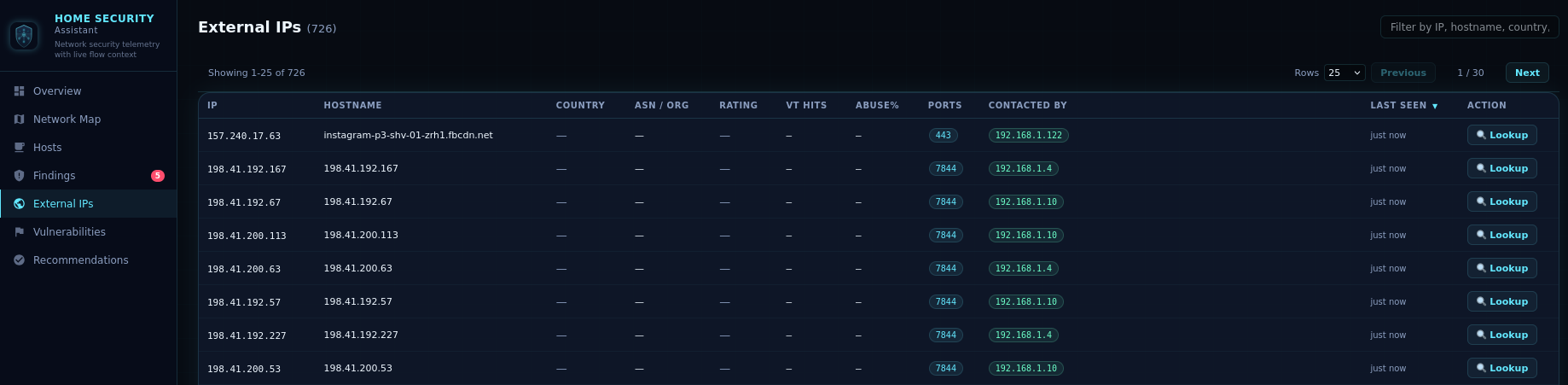
Example: External IP Intelligence Table
- NVD enrichment — queries the NIST National Vulnerability Database REST API 2.0 for CVEs matching detected service banners. Precise CPE vendor/product filtering for 20+ service mappings: SSH (OpenSSH, Dropbear), HTTP (Apache, nginx, lighttpd), MySQL/MariaDB, FTP (vsftpd, ProFTPD), SMTP (Postfix, Exim, Sendmail), Redis, MongoDB, PostgreSQL, SMB/NetBIOS/Microsoft-DS (Samba), IMAP (Dovecot), MQTT/MQTT-TLS (Mosquitto), ADB (Android Debug Bridge), DNS (BIND, dnsmasq), NTP (ntpd, Chrony), RTSP (Live555, GStreamer), and UPnP (MiniUPnP). Generic banner-based matching covers any other service with an identifiable version string
- Service-aware prefetching — NVD keyword prefetch is scoped to services actually detected on the network, avoiding unnecessary API calls for products not present
- HTTP technology validation — CVEs for web applications (WordPress, WooCommerce, Drupal, etc.) are only reported if the technology was actually confirmed via HTTP fingerprinting, eliminating false positives
- CISA KEV integration — cross-references findings against the CISA Known Exploited Vulnerabilities catalog, flagging CVEs under active exploitation
- Version-range matching — uses CPE configuration data to check if the exact detected version falls within a vulnerable range
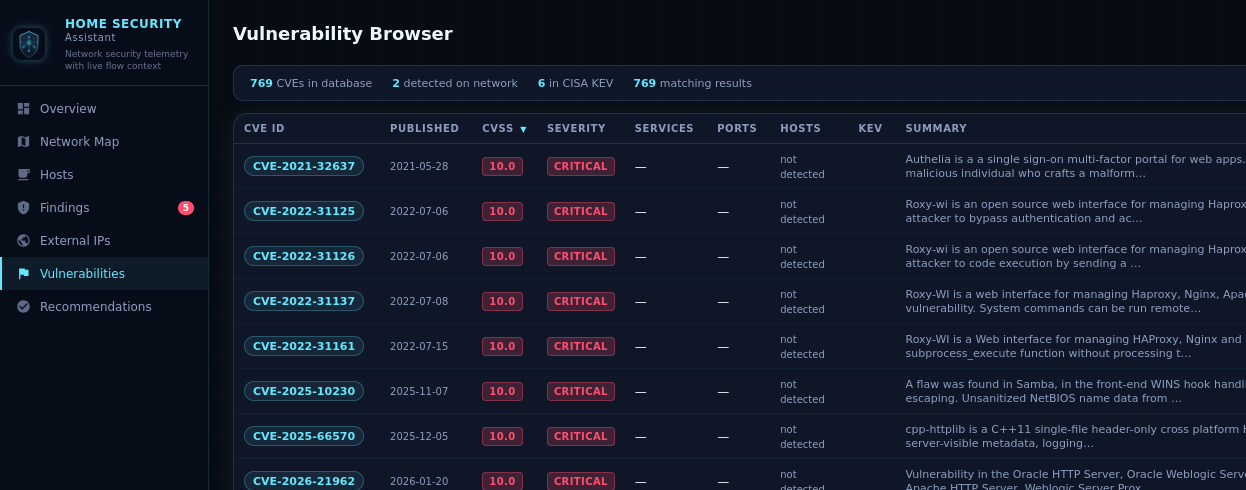
Example: Vulnerability Detection & NVD Browser
- Fingerprints devices from observed service ports and traffic behavior
- Infers device roles: gateway, camera, IoT, unknown, etc.
- Editable roles — correct any auto-detected role via dropdown in the Hosts view; overrides are persisted across restarts
- Enriches device identities from Home Assistant
device_trackerentities (IP, name, hostname, MAC) - Flags devices with known high/critical CVE vulnerabilities as "at risk"
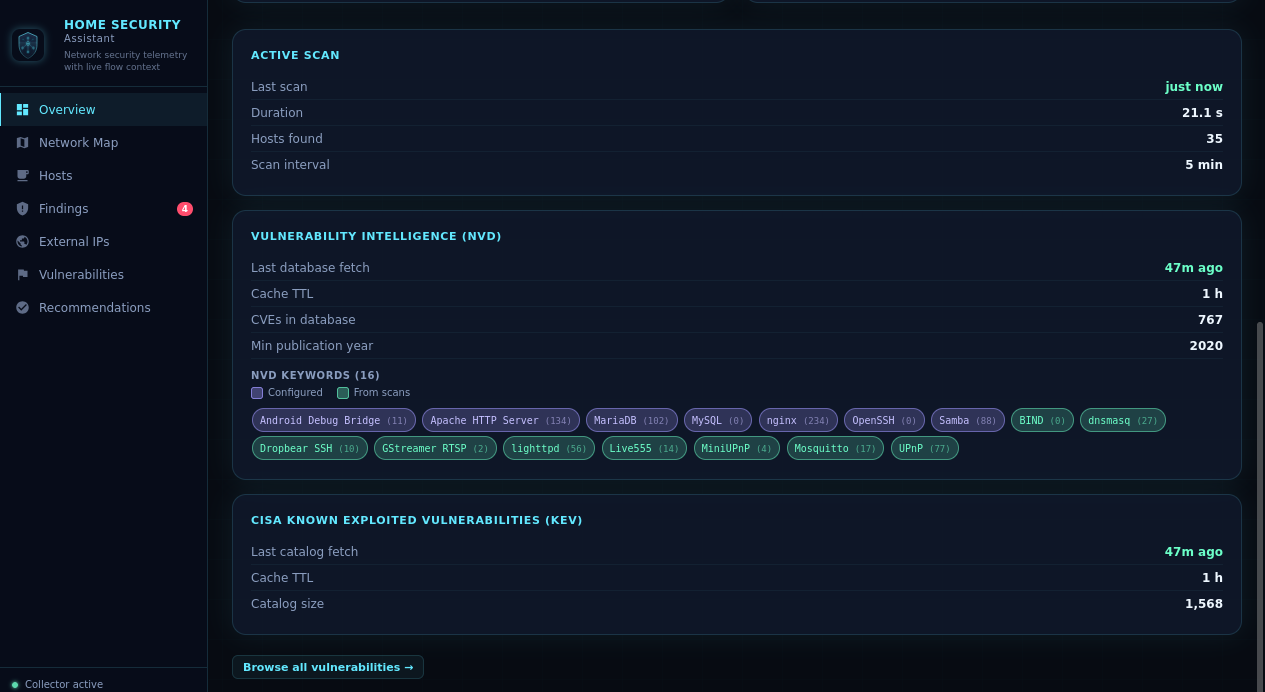
Example: Device Fingerprinting & Enrichment Overview Cards
- Automated normal-behavior profiling — enable training mode and the integration observes your network for a configurable duration (default 7 days) to build a baseline of normal hosts, external peers, open ports, DNS domains, and traffic volume
- Three modes:
Disabled(no baseline),Learning(actively training),Active(baseline ready, anomaly detection enabled) - Confidence scoring — baseline is rated
low,medium, orhighbased on the number of hosts and training snapshots observed - Anomaly detection — once active, flags deviations from the baseline as findings: new internal hosts, new external peers, newly opened ports, new DNS domain categories, and egress volume spikes (configurable multiplier)
- Persistent baseline — learned state is saved to
homesec_baseline.yamland survives restarts and component updates - Network Map integration — the Network Map gains two extra view modes: Baseline Snapshot (the learned graph) and Live vs Baseline (overlay comparison highlighting new edges in a distinct colour)
- Controlled via four HA services:
start_baseline_training,stop_baseline_training,retrain_baseline, andclear_baseline, all callable from Developer Tools → Actions or automations - Overview card — a new Baseline card in the Overview shows current mode, training progress (elapsed / remaining time), baseline creation age, confidence level, and quick-action buttons
- Actionable findings for high/critical issues with severity, source IP, category, and occurrence count
- Categories: suspicious ports, port scanning, high egress, vulnerabilities, baseline anomalies (new host, new peer, new port, new DNS category, egress spike)
- Four view modes — By Category (default), By Host, By Severity, and Flat; mode buttons appear below the section title for both the active Security Findings section and the Dismissed section
- By Category — groups findings by their type with human-friendly labels (Vulnerability / CVE, Port Scan, Suspicious Open Port, High Egress Traffic); each group shows a severity badge, finding count, aggregated occurrences, and latest timestamp
- By Host — groups all findings for the same source IP into a single expandable card, sorted by severity then IP address
- By Severity — groups findings into Critical / High / Medium / Low / Info buckets
- Flat — individual per-finding cards unchanged
- Expand any group with ▶ to see per-item rows with individual dismiss or restore buttons
- Dismiss all — one-click button on each group dismisses every finding in that group simultaneously
- Regex dismiss — "🗑 Pattern…" button opens a modal with a regex input, a live preview of all matched findings, and an optional note field; matching findings across all groups are dismissed in one action
- Per-section search — each section (Baseline Anomalies, Security Findings, Dismissed) has its own live search bar filtering by summary, source IP, category, or CVE ID; active filter counts shown in the section header
- Unified Dismissed section — dismissed security findings and dismissed baseline anomalies are shown together; baseline items carry a teal
Baselinechip; the same four view modes and search bar apply - Dismissible findings — dismiss individual findings from the UI; a
POST /api/homesec/findings/dismiss_by_patternendpoint is also available for scripting - Hardening recommendations with expand panels — click any recommendation card to reveal affected hosts (IP, tracker name, role badge, CVE links) and related findings (severity badge, source IP, summary); cards without structured data remain static
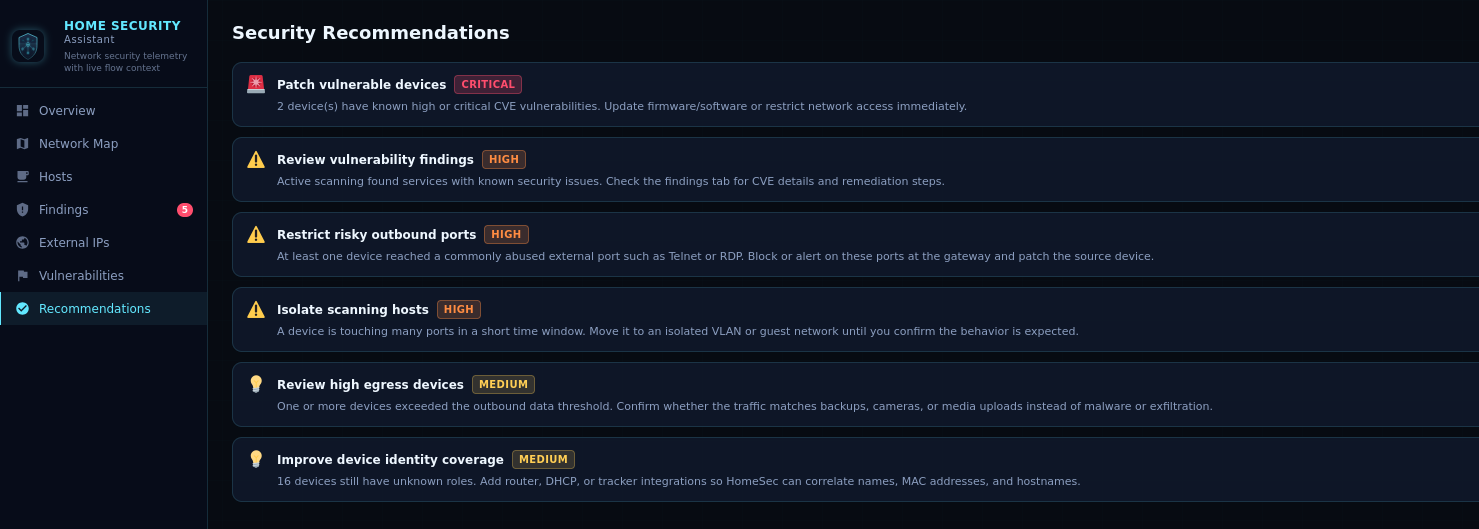
Example: Security Findings & Recommendations
- Built-in DNS proxy server that intercepts all DNS queries on a configurable port and upstream resolver
- Checks every queried domain against the loaded threat-intel blacklists and blocks known-malicious lookups
- Per-category blocking — optionally restrict entire categories (e.g.
malware,phishing,ads) from configured blocklist feeds - Source filtering (
check_sources) — optionally limit blocking to queries forwarded from specific upstream resolvers - DNS overrides — define custom
domain=iprules to resolve specific hostnames to fixed IPs, useful for local split-DNS or ad-hoc redirects - Maintains a rolling DNS query log (configurable retention; up to 10 000 entries in memory) showing timestamp, client IP, queried domain, query type, verdict (allowed / blocked), and matched source feed
- Fires a
homesec_malicious_dnsHA event whenever a blocked domain is queried, with src IP, domain, query type, and source feed - Automatic hiding — the DNS Queries sidebar nav item and the Overview DNS Proxy card are hidden when the proxy is not running, keeping the UI uncluttered
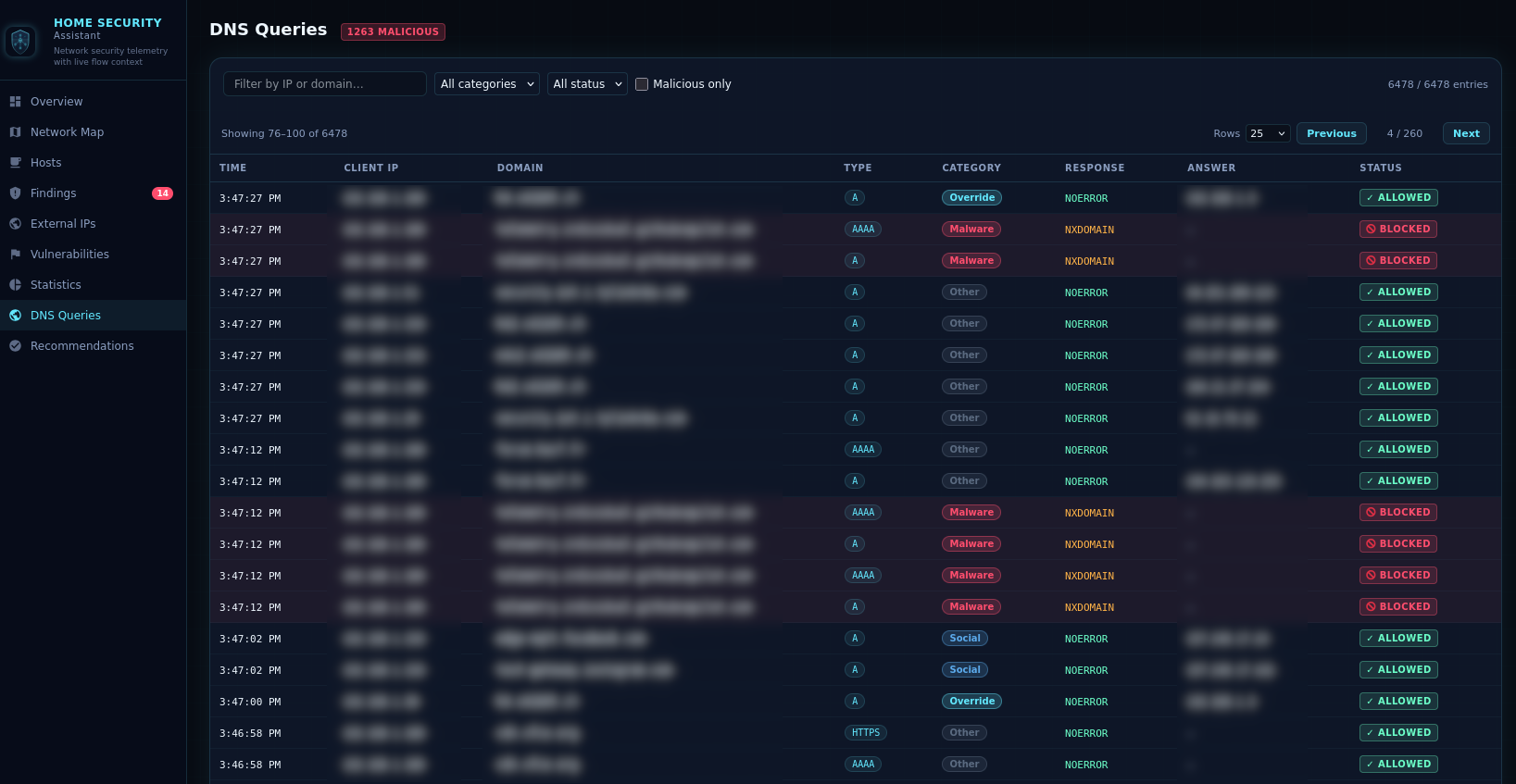
Example: DNS Proxy Query Log
A dedicated statistics view consolidates all operational metrics in one place:
- Activity Timeline (full-width) — three stacked bar charts covering the last 24 hours: Public IPs seen per hour, internal Hosts per hour, and DNS queries per hour (colour-coded: clean / blocked / malicious)
- Top N Public IPs — most-contacted external IPs ranked by flow count, with Pie / List toggle
- Top N Countries — contacted countries ranked by flow count, with Pie / List toggle
- Top N Internal Talkers — highest-traffic internal devices ranked by total bytes, with Pie / List toggle
- Top N Threat IPs — external IPs rated suspicious or malicious, with Pie / List toggle
- Blocked DNS Queries by Category — breakdown of blocked/malicious DNS queries by threat category, with Pie / List toggle
- Top N Blocked Queries by Client — internal hosts generating the most blocked/malicious DNS queries, with Pie / List toggle
- Top N Blocked / Malicious Domains (full-width) — table of most-queried blocked or malicious domains with category pills and query counts
- Enrichment Budget (full-width) — per-provider daily usage, budget, usage bar, status badge, detected tier/plan, and recent API errors
The configurable Statistics top N option (3–25, default 10) controls the depth of all ranked lists.
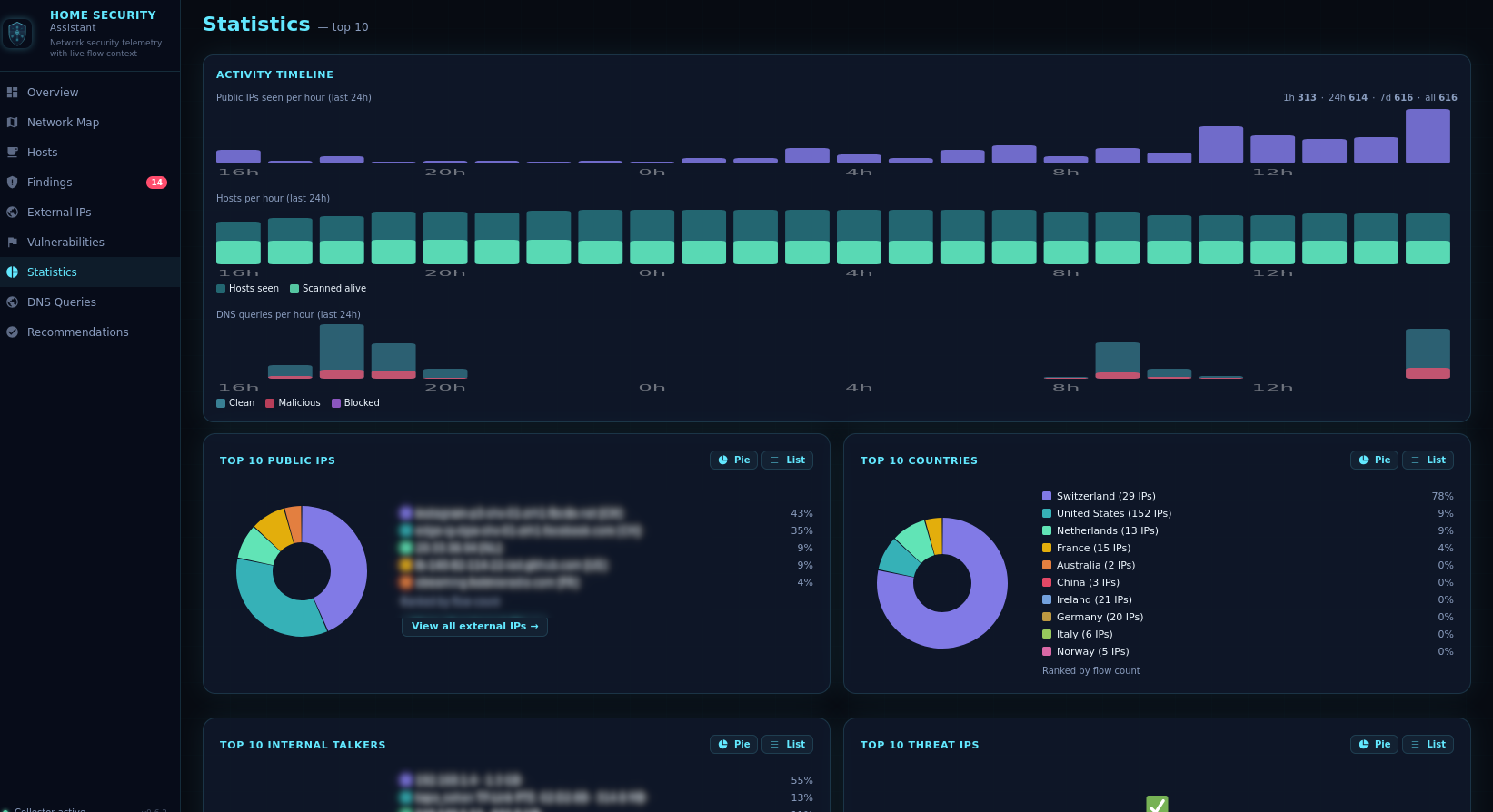
Example: Statistics Dashboard
A dedicated multi-view single-page application registered in the HA sidebar:
- Overview — summary stats, Active Scan card (last scan time, duration, hosts found, scan interval), NetFlow listener health, recent alerts, DNS Proxy card (running/stopped, total queries, blocked count, blocked %), Baseline card (current mode, training progress or baseline age, confidence, and action buttons), and NVD keyword chips showing all active search keywords color-coded by source (violet for user-configured, green for scan-derived). Quick-access navigation links at the bottom of the overview jump directly to the Vulnerabilities, Statistics, and DNS Queries views. The DNS Proxy card and DNS Queries link are hidden when the proxy is disabled.
- Network Map — live force-directed graph with zoom/pan, showing scanned hosts, flow-active hosts, at-risk devices, gateways, and top external peers. Filter toggles: All / Scanned / Flow only / External. When a baseline is available, two additional view modes are unlocked: Baseline Snapshot (the learned graph) and Live vs Baseline (overlay showing new edges in a distinct colour with a host/edge count chip)
- Hosts — searchable device inventory with inferred roles, scan results, and tracker-enriched names (alive hosts only)
- Findings — actionable security findings with four view modes (By Category, By Host, By Severity, Flat) and a live search bar per section. Dismissed security findings and dismissed baseline anomalies are consolidated in a single Dismissed section with teal
Baselinechips on baseline items. Regex dismiss, CVE details, and remediation hints included - External IPs — enriched external IP table with threat ratings, VirusTotal hits, AbuseIPDB scores, traffic volume (KB) column (sortable), direction badge (
↑ Outbound/↓ Inbound/↕ Both, sortable and filterable) with an amber ⚠ alert when the same external IP contacted a different internal host than the one that initiated the outbound relationship, last-seen timestamps, and on-demand lookup - Vulnerabilities — sortable vulnerability browser listing all cached NVD CVEs (not just network-detected) with CVSS scores, severity, affected service/technology, published date, CISA KEV flags, detected-on-network count, and a CVE detail modal showing full description and CPE criteria. CVEs not matching any host on the network are shown with a dimmed "not detected" indicator
- Statistics — at-a-glance operational dashboard. The Activity Timeline card (full-width) now contains three bar charts side-by-side: Public IPs per hour, Hosts per hour, and DNS queries per hour (stacked: clean/blocked/malicious). Below it: Top N Public IPs, Top N Countries, Top N Internal Talkers, and Top N Threat IPs (each with Pie/List toggle). Next row: Blocked DNS Queries by Category and Top N Blocked Queries by Client — both styled with the same Pie/List toggle as the other stat cards. Then a full-width Top N Blocked/Malicious Domains table, and finally the Enrichment Budget card with per-provider usage, daily budget (∞ for unlimited tiers), usage bar, status badge, detected account tier/plan, and recent API errors
- DNS Queries — paginated DNS query log (default 25 rows per page, adjustable to 10/25/50/100) with global filters for domain/client IP, verdict, category, and malicious-only. Includes a Blocked / Malicious by Category pie chart and a 🚫 Clear blocked button to remove all blocked entries from the log in one click. Hidden when the DNS proxy is disabled.
- Recommendations — prioritized hardening suggestions based on current network state; expandable cards show affected hosts and related findings
The dashboard auto-refreshes every 30 seconds. The network map updates live without resetting the physics simulation.
Custom integration icons (including dark mode variants) are shipped in the brand/ subdirectory of the component. Home Assistant 2026.3+ automatically serves them through the local brands API — no external CDN or brands repository submission required.
| Sensor | Description |
|---|---|
| Active Devices | Count of observed internal devices |
| Scanned Devices | Count of devices with active scan results |
| Total Flows | Total NetFlow/IPFIX records ingested |
| Open Findings | Count of actionable (high/critical) findings |
| Vulnerability Count | Count of CVE vulnerabilities detected |
| Suspicious Sources | Devices reaching commonly abused ports |
| High Egress Sources | Devices exceeding outbound data threshold |
| NVD Keywords | Count of NVD search keywords in cache (attributes: per-keyword CVE count, source classification — custom / product_map / fingerprint / banner — and fetch time) |
Each sensor exposes diagnostic attributes including device inventory, listener health, exporter IPs, protocol versions, template counts, and dropped datagram counters.
All services are callable from Developer Tools → Actions in Home Assistant.
| Service | Description |
|---|---|
homesec.trigger_scan |
Immediately run a full active network scan without waiting for the next scheduled interval |
homesec.nvd_refresh |
Flush the local NVD CVE cache and re-fetch fresh vulnerability data from NVD |
homesec.blacklist_refresh |
Clear all loaded threat-intel entries and immediately re-download every configured blocklist URL. Useful after adding or changing URLs, or when you need up-to-date coverage without waiting for the next scheduled refresh |
homesec.start_baseline_training |
Start baseline training mode and begin learning a normal activity profile for the configured training duration |
homesec.stop_baseline_training |
Stop baseline training immediately and promote the learned state to the active baseline if any hosts were observed |
homesec.retrain_baseline |
Clear the current baseline and immediately restart training mode |
homesec.clear_baseline |
Remove the current baseline state and all training progress from persistent storage |
- In Home Assistant, go to HACS → Integrations → Custom Repositories.
- Add this repository URL:
https://github.com/domo-monster/HomeSecurityAssistantas a custom integration. - Search for "Security Assistant" in HACS and click Install.
- Restart Home Assistant.
- Go to Settings → Devices & Services → Add Integration and search for "Security Assistant".
- Configure the bind host, UDP port, internal network CIDRs, scanner settings, and optional API keys.
- Point your router or flow exporter at the Home Assistant host and configured port.
- Copy the
custom_components/homesecdirectory into your Home Assistantcustom_components/folder. - Restart Home Assistant.
- Go to Settings → Devices & Services → Add Integration and search for "Security Assistant".
- Configure the bind host, UDP port, internal network CIDRs, scanner settings, and optional API keys.
- Point your router or flow exporter at the Home Assistant host and configured port.
Device tracker enrichment is automatic — if you have router or presence integrations that create device_tracker entities, Security Assistant will use those names, hostnames, and MAC addresses.
| Option | Default | Description |
|---|---|---|
| Bind host | 0.0.0.0 |
UDP listen address |
| Bind port | 2055 |
UDP listen port |
| Internal networks | 192.168.0.0/16, 10.0.0.0/8, 172.16.0.0/12, fd00::/8, fe80::/10 |
Comma-separated CIDRs |
| Port-scan detection window | 600 s |
Time window for port-scan heuristic |
| Unique ports before scan alert | 100 |
Threshold for port-scan finding |
| High egress threshold | 50 MB |
Octets per interval to trigger alert |
| Enable sidebar panel | true |
Register the Web UI panel |
| Sidebar panel requires admin | true |
Restrict sidebar panel visibility to Home Assistant admin users |
| Enable active scanner | true |
Ping + port scan internal hosts |
| Scan interval | 3000 s |
Seconds between active scans |
| Scan exceptions | (empty) | Comma-separated IPs to skip during active scanning |
| Scan ports | (47 default ports) | Comma-separated ports or ranges to probe (e.g. 22,80,443,8000-9000) |
| External IP retention (clean) | 5 h |
How long to keep clean external IPs (0 = forever) |
| Suspicious IP retention | 48 h |
How long to keep external IPs rated as suspicious |
| Malicious IP retention | 168 h |
How long to keep external IPs rated as malicious (default 7 days) |
| Enable reverse DNS | true |
Resolve external IP hostnames |
| Blacklist URLs | abuse.ch feeds | Comma-separated threat intel feed URLs |
| VirusTotal API key | (empty) | Optional, enables VT lookups |
| AbuseIPDB API key | (empty) | Optional, enables abuse score lookups |
| Enrichment cache TTL | 1440 min |
Minutes before re-querying external enrichment providers |
| AbuseIPDB confidence required before querying VirusTotal | 30 |
VirusTotal is queried only when AbuseIPDB confidence meets/exceeds this threshold (0–100) |
| VirusTotal daily budget | 500 |
Max daily VirusTotal queries |
| AbuseIPDB daily budget | 1000 |
Max daily AbuseIPDB queries |
| NVD cache TTL | 12 h |
Hours before re-fetching CVE data from NVD |
| NVD minimum CVE year | 2020 |
Oldest CVE year to include (0 = all years) |
| NVD search keywords | (16 defaults) | Comma-separated product names to query NVD for (e.g. OpenSSH, nginx, WordPress) |
| Statistics top N | 10 |
Number of top entries shown in the Statistics view (3–25) |
| Enable baseline learning | false |
Enable the baseline training and anomaly detection engine |
| Baseline training duration | 168 h |
How many hours to observe the network before promoting the baseline to active |
| Baseline minimum observations | 3 |
Minimum number of coordinator snapshots a host must appear in before it is included in the baseline |
| Baseline egress anomaly multiplier | 2.5 |
Egress volume is flagged as anomalous when it exceeds the baseline average by this factor |
| Enable DNS proxy | false |
Run a local DNS proxy that filters queries against threat-intel blacklists |
| DNS proxy port | 53 |
UDP port the DNS proxy listens on |
| DNS proxy upstream | 1.1.1.1 |
Upstream resolver for non-blocked queries |
| DNS proxy check sources | (empty) | Comma-separated threat-feed source names to use for blocking decisions (empty = all sources). If set, matches from other feed sources are logged but not blocked. |
| DNS blocked categories | (empty) | Comma-separated feed categories to block (e.g. malware,phishing,ads) |
| DNS overrides | (empty) | Static domain=ip override rules (one per line or comma-separated). Persisted in homesec.yaml and restored on startup. |
| DNS log retention | 24 h |
Hours to keep DNS query log entries (0 = keep all) |
All options can be changed after setup via Configure on the integration card. Changes trigger an automatic reload.
- OpenWrt with
softflowd - OPNsense / pfSense NetFlow or IPFIX export
- UniFi gateway flow export
- MikroTik Traffic Flow
softflowd -i br-lan -n 192.168.1.10:2055 -v 5- Target host: Home Assistant IP
- Target port:
2055 - Version:
9orIPFIX - Interfaces: LAN and any VLANs you want visibility for
- Confirm the integration is loaded in Settings → Devices & Services.
- Restart Home Assistant after updating the component files.
- Hard-refresh your browser (Ctrl+Shift+R).
- Try the fallback URL:
/api/homesec/panel - Check that the sidebar panel isn't hidden in your user profile customization.
- Verify "Enable sidebar panel" is enabled in the integration configuration.
- Check that your exporter targets the correct IP and port.
- Verify firewall rules allow UDP traffic on the configured port.
- If using Docker, ensure the port is mapped through to the container.
- Flow analysis is based on metadata (IPs, ports, byte counts), not packet payload. It cannot identify every protocol misuse or exploit.
- Device fingerprinting is heuristic and informative, not authoritative.
- Active scanning requires network access to internal hosts from the HA instance.
- External IP enrichment quality depends on the optional API keys configured.
- Tracker enrichment depends on existing HA integrations exposing device IPs through
device_trackerentities.
Home Security Assistant writes multiple plain YAML files to the Home Assistant config directory (alongside configuration.yaml). They survive integration updates, HA restarts, and config-entry reloads. Do not place them under version control if they contain API keys.
All user-facing configuration options are mirrored here on every reload. At startup the file is read back and merged into the active config entry so that values are never lost when the component is updated via HACS or a manual file copy. Only the keys listed below are ever written; any other keys present in the file are ignored.
| Key | Description |
|---|---|
bind_host / bind_port |
UDP listener address and port |
internal_networks |
Comma-separated internal CIDR ranges |
scan_window_seconds / scan_port_threshold |
Port-scan detection parameters |
high_egress_threshold |
Byte threshold for the high-egress finding |
enable_webui |
Whether the sidebar panel is registered |
enable_scanner / scan_interval / scan_exceptions / scan_ports |
Active scanner settings |
external_ip_retention_hours |
Retention window for external IP history |
enable_dns_resolution / blacklist_urls |
DNS resolution and threat-feed URLs |
dns_proxy_enabled / dns_proxy_port / dns_proxy_upstream |
DNS proxy enable flag, port, and upstream resolver |
dns_proxy_check_sources / dns_blocked_categories / dns_overrides |
DNS proxy source filter, category blocklist, and static overrides |
dns_log_retention_hours |
DNS query log retention window |
virustotal_api_key / abuseipdb_api_key |
External enrichment API credentials |
vt_abuseipdb_threshold |
AbuseIPDB confidence threshold required before querying VirusTotal |
enrichment_ttl_minutes |
Enrichment provider cache TTL |
virustotal_daily_budget / abuseipdb_daily_budget |
Per-provider daily query budgets |
retention_suspicious_hours / retention_malicious_hours |
Severity-based retention windows for external IPs |
stats_top_n |
Number of top entries shown in the Statistics view |
nvd_api_url / nvd_ttl_hours / nvd_min_year |
NVD CVE enrichment settings |
nvd_keywords |
Comma-separated NVD search keywords |
baseline_enabled |
Whether the baseline learning engine is active |
baseline_training_hours |
Training duration in hours before promoting to active baseline |
baseline_min_observations |
Minimum snapshots a host must appear in to be included in the baseline |
baseline_egress_multiplier |
Egress volume multiplier threshold for anomaly detection |
Merge behaviour: file values fill in keys that are absent or empty in the config entry — the UI always wins for keys that have a value in both places. This allows pre-seeding settings by writing the file before the integration is installed.
Stores manual role corrections made via the Hosts view dropdown. Structure is a flat ip: role mapping. Written every time a role is changed; read at startup so overrides are immediately applied to all hosts without waiting for a new scan cycle.
# Home Security Assistant — device role overrides
192.168.1.1: gateway
192.168.1.50: camera
192.168.1.101: iot
Available roles match the fingerprinting vocabulary: gateway, camera, iot, desktop, server, mobile, unknown.
Written after each active-scanner cycle and reloaded at startup. Ensures the Hosts view and network map are immediately populated on restart without waiting for the first full scan. Each key is an IP address; each value is a dict of scan results (alive, open_ports, os_guess, ping_ms, etc.).
This file is auto-managed — editing it manually is not recommended as it will be overwritten after the next scan.
Stores manual host display-name overrides made in the Hosts view. Structure is a flat ip: name mapping.
Written every time a finding is dismissed via the Findings dashboard view; read at startup so dismissals survive restarts and component updates. Structure is a flat YAML list of finding-key strings. You can manually remove a key from this file to restore a previously dismissed finding — it will reappear after the next coordinator refresh.
# Home Security Assistant — dismissed findings
- "vuln:192.168.1.50:80:CVE-2021-1234"
- "suspicious_port:192.168.1.20"Written on integration shutdown and reloaded at startup (filtered to the configured retention window). Stores the rolling DNS proxy query log so that history survives restarts. Entries contain timestamp, src_ip, domain, qtype, verdict, and matched source. This file is auto-managed — do not edit it manually.
Additional runtime state files used by recent versions:
homesec_ext_ips.yaml— persisted external IP state (first/last seen, sources, ports, severity)homesec_timeseries.yaml— persisted statistics timeline pointshomesec_enrichment_state.yaml— per-provider daily enrichment usage countershomesec_chart_state.yaml— persisted top statistics chart snapshots (restart fallback)homesec_baseline.yaml— persisted baseline learned state (hosts, edges, training metadata, confidence). Written whenever the baseline changes; read at startup to restore anomaly detection without retraining
These files don't exist yet — they are created at runtime by a running Home Assistant instance, not in this development workspace. They are written to hass.config.config_dir, which is wherever your HA configuration lives (the directory containing configuration.yaml).
Typical locations depending on your install type:
HA install type Config directory Home Assistant OS / Supervised /config/ Home Assistant Container (Docker) the volume mapped to /config Home Assistant Core (venv) ~/.homeassistant/
So the files will appear as: /config/homesec.yaml /config/homesec_roles.yaml /config/homesec_names.yaml /config/homesec_hosts.yaml /config/homesec_dismissed.yaml /config/homesec_dns_log.yaml /config/homesec_ext_ips.yaml /config/homesec_timeseries.yaml /config/homesec_enrichment_state.yaml /config/homesec_chart_state.yaml /config/homesec_baseline.yaml
They are created:
homesec.yaml — the first time the integration loads after setup homesec_roles.yaml — the first time you save a role override in the Hosts view homesec_names.yaml — the first time you save a custom host name in the Hosts view homesec_hosts.yaml — after the first active scanner cycle completes homesec_dismissed.yaml — the first time you dismiss a finding in the Findings view homesec_dns_log.yaml / homesec_ext_ips.yaml / homesec_timeseries.yaml — after corresponding runtime data is produced homesec_baseline.yaml — after the first baseline training cycle completes or when training is stopped manually
The Vulnerability Browser only shows CVEs that are relevant to services actually detected on your network. The CISA Known Exploited Vulnerabilities (KEV) catalog contains ~1,100 CVEs across hundreds of products (Microsoft Windows, Adobe, Cisco, Apple, etc.), but the NVD cache only holds CVEs for the specific services running on your hosts — for example OpenSSH, nginx, or PostgreSQL. The KEV match count reflects the real overlap between those two sets, which is typically small (single digits to low tens) for a home network.
This is expected behavior, not a bug: a low KEV count means few of the actively-exploited vulnerabilities in the CISA catalog apply to the software versions found on your network.
- New DNS categories — added
Finance,Shopping, andTraveldomain categories for enhanced DNS classification coverage. Finance domains (banking, cryptocurrency, payment) are now properly tagged, e-commerce sites (Amazon, eBay) are categorized as Shopping, and travel platforms (booking, airlines) as Travel. - Extended ad domains list — added 15+ additional ad network domains (carbonads.com, buysellads.com, trafficjunky.com, adsterra.com, propellerads.com, popads.net, popcash.net, bidvertiser.com, and others) to improve DNS blocking accuracy for advertising traffic
- DNS Proxy card visibility — the "Top N Blocked / Malicious Domains" statistics card is now hidden when the DNS proxy is disabled, reducing visual clutter in the Overview and Statistics views
- Fixed DNS search focus issue — DNS query log filter now responds only to Enter key presses instead of firing on every keystroke, eliminating focus-stealing re-renders that interrupted typing
- Fixed JavaScript variable hoisting bugs — corrected multiple variable scope issues in the frontend:
- Overview card no longer displays baseline training completion percentage when displaying NetFlow listener parse rate
- Baseline training section correctly reports datagram count instead of training duration in seconds
- Fixed DNS category map — removed duplicate function definitions in
dns_categories.pythat were silently overwriting the comprehensive domain mapping with an incomplete version, causing excessive "other" categorization - Logo integration — replaced inline SVG with external image reference for cleaner HTML structure
- Integration renamed — the integration display name is now Security Assistant (was "Home Security Assistant") across the HA UI, config flow, options flow, and sidebar panel title.
- Dismissed baseline anomalies now visible — dismissed findings from the Baseline Anomalies section were silently filtered out of the Dismissed list. They now appear in the unified Dismissed section with a teal
Baselinechip to visually distinguish them from security findings. - Unified Dismissed section — all dismissed items (security findings and baseline anomalies) are shown in a single "Dismissed" section instead of two separate lists. Each item carries a
Baselinechip when it originated from baseline anomaly detection. - Findings view group modes — the previous "Grouped / Flat" two-button toggle for Security Findings and Dismissed is replaced by four mode buttons: By Category, By Host, By Severity, and Flat. The same four modes are available for both the Security Findings and Dismissed sections.
- Human-friendly category labels — raw
snake_casecategory names are replaced by readable labels everywhere in the Findings view. Security finding categories:vulnerability→ Vulnerability / CVE,port_scan→ Port Scan,suspicious_port→ Suspicious Open Port,high_egress→ High Egress Traffic. Baseline anomaly categories:anomaly_new_host→ New Host Detected,anomaly_new_peer→ New External Peer,anomaly_new_port→ New Open Port,anomaly_new_dns_domain→ New DNS Domain,anomaly_new_dns_category→ New DNS Category. - Per-section search bars — each section in the Findings view (Baseline Anomalies, Security Findings, Dismissed) has its own live search bar placed to the right of the mode buttons. Searches across summary, source IP, category, and CVE ID. Active filter counts ("N shown") are displayed alongside total counts in the section header.
- Statistics view enhancements — two new chart pairs added: Top N Hosts in Deviations and Top N External IPs in Deviations, both with Pie / List toggle. Chart layout reordered for logical grouping. All ranked stat cards follow consistent two-column pairing.
- Map zoom & pan fixed — a missing
var self = thisin_initMapcaused all map event listeners to write towindowinstead of the component instance, breaking zoom and pan in all map modes (Live, Baseline Snapshot, Live vs Baseline). - Nav badge count corrected — the Findings sidebar badge was counting individual raw finding records. It now counts distinct finding-summary groups plus distinct baseline anomaly categories, matching what the user actually sees in the grouped view.
- Findings
undefinedrendering bug fixed —renderGroupedreturnedundefinedin all cases due to the group-building code being unreachable (placed after areturninside the.sort()comparator). The function now returns rendered HTML correctly. - Double "ago" bug fixed — the Overview page displayed timestamps as "2h ago ago". The redundant
+ ' ago'suffix appended after calling_ago()(which already includes "ago") was removed.
- Baseline Learning Mode — three-mode baseline engine (
disabled/training/active). Observes normal network behaviour for a configurable duration and flags deviations: new hosts, new external peers, new open ports, new DNS domains/categories, and egress volume spikes - Baseline confidence scoring —
low/medium/highconfidence based on host count and training snapshots - Persistent baseline — learned state saved to
homesec_baseline.yaml, survives restarts - Network Map baseline modes — Baseline Snapshot and Live vs Baseline overlay views added when a baseline is available; new edges highlighted in a distinct colour
- Baseline Overview card — shows current mode, training progress bar (elapsed / remaining), baseline age, confidence, and quick-action buttons
- Baseline HA services —
start_baseline_training,stop_baseline_training,retrain_baseline,clear_baseline - Baseline anomalies in Findings — new anomaly categories surfaced as findings:
anomaly_new_host,anomaly_new_peer,anomaly_new_port,anomaly_new_dns_domain,anomaly_new_dns_category
- Recommendation count fix — "Unknown roles" and "Tracker enrichment" recommendation thresholds now count only alive devices, matching the filter used in the Hosts view. Previously offline devices could inflate counts and trigger recommendations unnecessarily.
- Clickable recommendation cards — each recommendation now exposes structured
hostsandfindings_refsmetadata. In the UI, cards with data show a ▶ chevron and expand on click to reveal: affected hosts (IP, tracker name, role badge, CVE links) and related findings (severity badge, source IP, summary). - Traffic (KB) in External IPs — each external IP entry now aggregates total byte volume from flow records. A sortable Traffic (KB) column appears in the External IPs table.
- Grouped findings view — the Findings view defaults to grouped mode: findings sharing the same summary are collapsed into one card. Expanding a group shows per-host rows. A "Dismiss all N" button dismisses the entire group at once. A header toggle switches to the original flat layout.
- Regex dismiss — a "🗑 Pattern…" button opens a dismiss-by-regex modal with live preview. The backend also exposes
POST /api/homesec/findings/dismiss_by_patternfor scripting. - Statistics view DNS reorganisation — the DNS Activity bar chart moved into the Activity Timeline card (alongside Public IPs/hr and Hosts/hr). "Blocked DNS Queries by Category" and "Top N Blocked Queries by Client" are now styled stat-cards with Pie/List toggle buttons. "Top N Blocked/Malicious Domains" is promoted to a full-width card.
See GitHub releases for earlier history.
Syntax check:
python3 -m compileall custom_components/homesec